RuPay
About this guide
The RuPay card enablement merchant integration guide for Authentication and Payment transaction through Direct API and Hosted Checkout (HCO) is for payment facilitators, solution providers, and direct merchants with RuPay new e-commerce platform through Accertify Payment Gateway.
Region
India
Scope of document
This guide provides the necessary steps to integrate the following supported features:
- Payer Authentication: Seamless Experience (Direct API and HCO)
- Payer Authentication: Redirection to issuer ACS page (Direct API and HCO)
- Payment transaction: Direct API and HCO
Overview
NPCI and Accertify Payment Gateway have partnered to enable the RuPay Card scheme acceptance Accertify Payment Gateway for processing e-commerce transactions. Merchant can use RuPay card or network tokens and submit a transaction request to the gateway.
Supported use cases
The Accertify Payment Gateway supports the following payer authentication use cases.
- RuPay token reference-based transaction - You integrate directly with the RuPay tokenization service provider and submit the token details in a transaction request to the gateway.
- Authentication only - You perform RuPay payer authentication using the gateway. You can choose to submit the payment using the authentication details at a later stage through this gateway or another gateway.
- Authentication and Payment transaction - You perform RuPay payer authentication using this gateway and proceed to submit the payment using the authentication details through this gateway.
Transaction processing
These steps indicate the transaction processing flow.
- NPCI regularly provides BIN files for upload onto Accertify Payment Gateway.
- The cardholder uses their RuPay card as a payment instrument on a merchant's website.
- The merchant sends a payer authentication request to Accertify Payment Gateway.
- Accertify Payment Gateway forwards the request to the NPCI network to route it to the Issuing Bank.
- The issuing bank or merchant captures and verifies the OTP on their domain.
- After successful OTP verification, the merchant executes a payment authorization or transaction request.
- After completing the transaction, Accertify Payment Gateway sends a confirmation back to the merchant.
- The cardholder completes the check-out process.
- At the end of the day, Accertify Payment Gateway generates a Draft Capture File (DCF).
- The NPCI Acquirer Member collects the DCF and processes it.
- The acquirer sends a settlement file to NPCI for clearing and settlement.
- NPCI identifies the Issuing Bank and sends fund transfer instructions to the settlement bank.
- The Issuer bank transfers funds to the NPCI Acquirer Bank through the settlement bank.
Figure: Transaction processing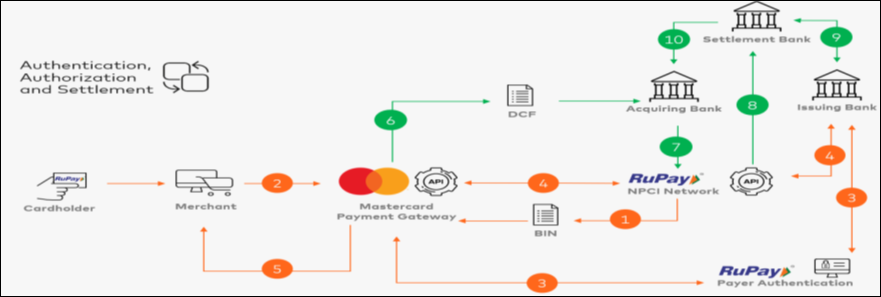
Adding RuPay tokenization to your integration
To integrate RuPay tokenization, merchants or their Payment Service Providers (PSPs) connect directly with the NPCI Tokenization System (NTS), which replaces PANs with secure network tokens for safer transactions.
- Network tokenization service providers, such as the NPCI Tokenization System (NTS), generate a network token, also called a card scheme token, in exchange for the payer's Primary Account Number (PAN)
- You or your Token Requestor acting on your behalf can tokenize existing account PANs on file and replace each PAN with a unique network token.
- Merchant or their PSPs must integrate directly with the NPCI token service to explore compliant scheme tokenization solutions.
Card tokenization transaction flow
The following steps outline the transaction flow for card tokenization.
- The consumer enrolls their account with a digital payment service provider, for example, an online retailer or mobile wallet.
- The consumer provides their PAN, security code, and other account details.
- Upon successful OTP verification, the system adds the card to the site or app.
- The system generates the token credentials in the backend.
- When integrated directly with the network token service provider, merchants must obtain token details from the provider.
- Provide these token details in the Authorization or Pay request to the gateway to process payments.
Option 1: Card Tokenization Transaction ln-line
Card registration is an inline transaction in which consumer can opt for the Save Card option during the first transaction using a real card number and the same is processed by the merchant for token tokenization through Token Requestor to NPCI Token System NTS. After successful 2FA, the system completes the tokenization.
The process has two legs. In the first leg, the system completes the payment transaction. After successful closure, the system performs tokenization in the second leg. The system does not generate a separate OTP for tokenization. If tokenization fails, the failure does not impact the payment transaction.
`|
# |
WS-API Operation |
Card Tokenization – Complete Transaction ln-line |
|
1 |
|
Customers select “save card” and proceed for payment |
|
2 |
Initiate Authentication |
Merchant calls WS-API Initiate Authentication and requests submitted by merchants to the gateway through real card details |
|
3 |
Authenticate Payer |
Once you gather all payer and payment data, submit the Authenticate Payer request. Invoke this request when the payer clicks the "Pay Now" button on the checkout page. |
|
4 |
Issuer verifies the card details and shares the response back to your gateway | |
|
5 | After you collect the OTP from the customer, submit the OTP provided by the customer using the URL present in action tag in
Merchant requests for cardholder verification OTP which gets routed to the issuer through gateway | |
|
6 |
Issuer ACS validates the OTP shared by the gateway and sends the response back to the gateway | |
|
7 |
Accertify Payment Gateway share the result of the Authenticate Payer operation | |
|
8 |
On successful response, merchant may initiate an Authorize or Pay operation | |
|
9 |
Authorize or pay |
Accertify Payment Gateway initiate financial transaction request to RuPay network |
|
10 |
Accertify Payment Gateway forwards the response back to the merchant. |
Option 2: Card tokenization through card registration only
Customers can register their card provisioning separately if they wish to store card credentials without initiating a payment transaction. In such cases, the issuer generates an OTP using zero-amount authorization. After the customer successfully verifies the OTP, the system provisions the card and generates the token credentials.
|
# |
WS-API Operation |
Card Tokenization Flow with registration only |
|
1 |
|
Consumers select “save card” and proceed for payment |
|
2 |
Initiate Authentication |
Merchant calls WS-API Initiate Authentication and requests submitted by merchants to the gateway through real card details |
|
3 |
Authenticate Payer |
Once you gather all payer and payment data, submit the Authenticate Payer request. You should invoke this when the payer clicks the "Pay Now" button on the checkout page. |
|
4 |
Issuer verifies the card details and shares the response back to your gateway | |
|
5 |
Merchant request for cardholder verification OTP is routed to the issuer through gateway | |
|
6 |
Issuer ACS validates the OTP shared by gateway and sends response back to the gateway | |
|
7 |
Accertify Payment Gateway shares the result of the Authenticate Payer operation |
Option 3: Transaction processing with the token
This flow outlines the steps for processing a transaction using a provisioned token.
- Once the system provisions the token, the customer initiates an e-commerce transaction with the saved card or token. The merchant ensures that the token stored as part of the Token Reference has not expired. If the token has expired, the merchant initiates Card Registration as explained in section Option 2: Card Tokenization with card registration only.
- This is a token-based payment transaction.
- It has two steps for transaction processing.
- In the first step, the merchant retrieves the token credentials fetched from National Payments Corporation of India (NPCI) Token Service and once the credentials are available, as a second step, they can be used to process transaction having authentication and authorization leg through the Accertify Payment Gateway.
Payment transaction or Customer-Initiated transaction using RuPay card on file token
This flow outlines the steps for processing a transaction using a saved RuPay token or Card-on-File initiated by the customer.
- Customer selects a saved card or tokens and proceeds for payment.
- Merchant initiates
get_tokenthrough Token Requestor to NPCI Token System outside of Accertify Payment Gateway. - NPCI Token System returns the token, expiry, and cryptogram back to the merchant.
- Merchant calls WS-API Initiate Authentication and requests submitted by merchants to the gateway through the scheme token.
- Once you have all the payer and payment data, you can submit the Authenticate Payer request using scheme token, expiry, and cryptogram. You should invoke this when the payer clicks the "Pay Now" button on the checkout page.
- Issuer verifies the card details and shares the response back to your gateway.
- Merchant requests for cardholder verification OTP which gets routed to the issuer through gateway or completes the cardholder verification OTP on the merchant website, also known as native OTP.
- Accertify Payment Gateway shares the result of the Authenticate Payer operation.
- Merchant initiates financial transaction request to the RuPay network.
- Accertify Payment Gateway forwards the response back to the merchant.
Payment transaction or Merchant-Initiated transaction using RuPay card on file token
This flow outlines the steps on how a merchant-initiated payment transaction is processed using a RuPay token or Card-on-File.
- Merchant initiates
get_tokenthrough the token requestor to the NPCI token system. - NPCI token system returns the token, expiry, and cryptogram back to the merchant.
- Merchant initiates a payment for which the payer has entered an agreement. For example, account top-up using the same stored card.
- Merchant calls WS-API Authorize or Pay with RuPay token, expiry and cryptogram.
- Accertify Payment Gateway initiates the financial transaction request to the RuPay network.
- Accertify Payment Gateway forwards the response back to the merchant.
Integration guidelines
Integration options
There are two integration options with the Accertify Payment Gateway: Webs services API (Direct) and Hosted Checkout. For more information on how to integrate using these options, review the API Integration guides available on MTF and production environments.
Merchant configured for using Web-services API or Direct Integration
When the cardholder selects Pay with RuPay on the merchant's website, the merchant initiates the card payment flow with the Accertify Payment Gateway. The Accertify Payment Gateway manages the process of seamless and redirection authentication. If the payer authentication is successful, the authorization request is made. On completion of the process, the system redirects the cardholder's browser back to the merchant's website.
Figure: Seamless Authentication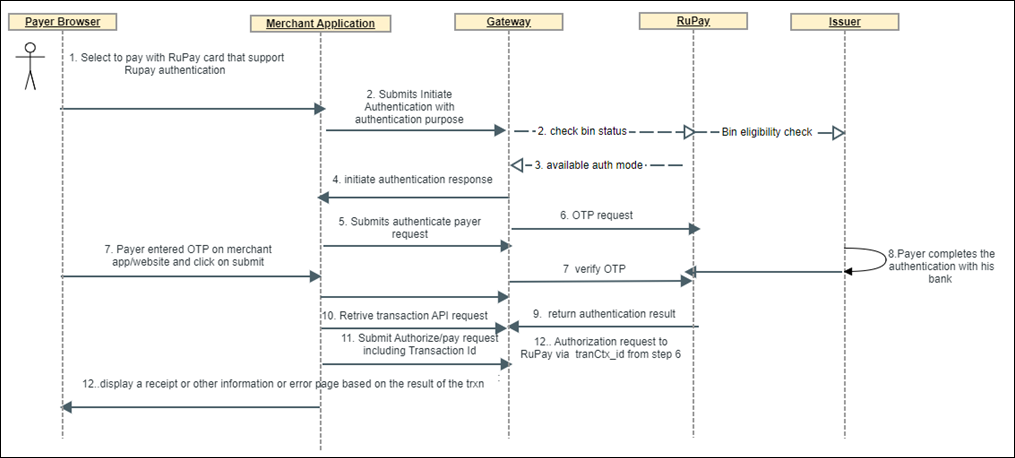
Merchant configured for using the Hosted Checkout integration
The RuPay button displays on the Hosted Checkout page provided by the Accertify Payment Gateway. If the cardholder selects RuPay, then the payment page redirects the cardholder's browser to a site hosted by the issuer bank for authentication first. If the payer authentication is successful, the system makes the authorization request. After the process is completed, the payment page redirects the cardholder's browser is redirected back to the Hosted Checkout page.
Figure: HCO transaction flow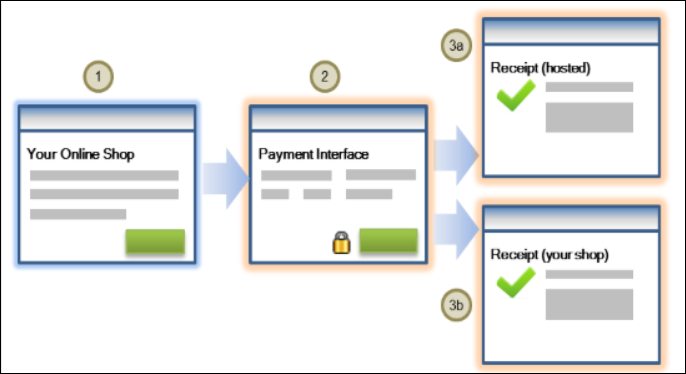
Types of Payer Authentication in RuPay Cards
Accertify Payment Gateway supports the RuPay cardholder authentication in two ways:
- Redirection: The issuer hosts the password entry page in this one-time password authentication for payers. During payer authentication, the issuer delivers a one-time password (OTP) to the cardholder's registered mobile number. The cardholder enters this OTP into the designated authentication interface to validate the transaction. The system verifies the cardholder, and the transaction proceeds if the password submitted matches the password provided. While using the Redirection method, the issuer sends a URL in place of the merchant for the password authentication. The issuer hosts the password form at this address. Due to network traffic, this redirection from the merchant to the issuer may create a delay in the completion of the transaction.
- Seamless server-to-server: In the Seamless server-to-server flow, the system initiates and completes the payer authentication within the merchant's environment or on the Accertify Payment Gateway-hosted payment interface. The cardholder remains on the merchant's website or application and enters the one-time password (OTP) directly into the merchant-hosted form, eliminating the need for redirection to the issuer's EMV 3-D Secure page. This approach minimizes authentication hops and potential failure points resulting in faster transaction completion, enhanced user experience, and improved authorization success rates. Merchant prefer it for BINs that support both authentication flows.
Figure: Types of payer authentication in Rupay cards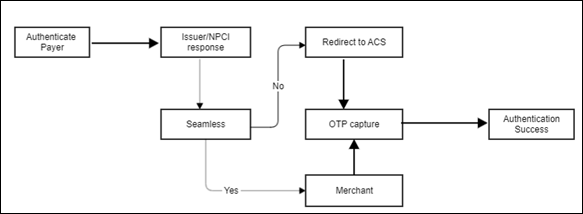
Supported EMV 3-D Secure integration options
The payment gateway supports the following integration options for RuPay authentication on version 77 and later.
- Hosted Checkout: Hosted Checkout is the easiest integration method. When enabled and properly configured by your payment service provider, RuPay cardholder authentication is automatically available to you.
- Authentication API: This is a server-side integration option that gives you total control over your integration but requires the highest integration effort. Use this option to customize API interactions between the payer's browser and the gateway. Perform operations required to manage the integration flows directly from your merchant server to the gateway server.
Payer authentication through Authentication API:
To authenticate payers. RuPay payer authentication through RuPay Bharat eCommerce Payment Gateway (BEPG) is used when using RuPay card or RuPay provided tokens.
The Authentication API has support for RuPay payer authentication from the API version 76 and later.
Step 1: Initiate authentication.
Step 2: Authenticate payer.
Step 3: Retrieve transaction..
Step 4: Authorize + Capture or Pay operation.
Step 1: Initiate Authentication
The Initiate Authentication API operation is used to:
- Check the eligibility of RuPay card BIN for e-commerce transactions.
- Ensure that the acquirer completes the authentication through NPCI supported redirection flow or seamless flow.
When submitting a WS API INITIATE_AUTHENTICATION request, the merchant must provide the authentication channel in field authentication.channel and purpose of authentication in field authentication.purpose.
- PAYER_BROWSER: The payer is interacting through web browser. For example, with the merchant's electronic commerce web site. The Authentication Channel indicates where the Payer Authentication is taking place:
- PAYMENT TRANSACTION: When processing a card payment. Used as a default value if no value is provided.
| URL | https://uat.accpg.accertify.net/api/rest/version/100/merchant/{MID}/order/{OID}/transaction/{TID}'\ |
| HTTP Method | PUT |
{

    "apiOperation":"INITIATE_AUTHENTICATION",

    "order": {

        "currency": "INR"

    },

    "authentication": {

        "purpose": "PAYMENT_TRANSACTION",

        "channel": "PAYER_BROWSER"

    },


    "sourceOfFunds": {

        "type": "SCHEME_TOKEN",

        "provided": {

            "card": {

                "number": "6071489876543212"

            }

        }


    }

}
- Add card or non-payment authentication: The cardholder consents to the storage of their payment credentials for future use, typically during customer registration or token provisioning. This process involves entering card details and completing OTP-based authentication as mandated by the card network. The transaction is zero-value, the system does not process any payment at this stage.
Example: Monthly subscription services with no payment required when the customer signs up.
| URL | https://uat.accpg.accertify.net/api/rest/version/100/merchant/{MID}/order/{OID}/transaction/{TID}'\ |
| HTTP Method | PUT |
{

"apiOperation":"INITIATE_AUTHENTICATION",

"order": {

"currency": "INR"

},

"authentication": {

"purpose": "ADD_CARD",

"channel": "PAYER_BROWSER"

},


"sourceOfFunds": {

"type": "SCHEME_TOKEN",

"provided": {

"card": {

"number": "6071489876543212"

}

}


}

}
Invoke the request when the payer confirms the intention to pay on the checkout page. For example: Pay Now. The merchant must submit a WS API INITIATE_AUTHENTICATION request with the following mandatory fields:
- order.id
- transaction.id
- order.currency
- Scheme token details in
- sourceOfFunds.provided.card.number
- sourceOfFunds.type=SCHEME_TOKEN
- Authentication.purpose
- Authentication.channel
Initiate Authentication Response
If the card is a RuPay card and payer authentication is supported by the system, the merchant receives a WS API INITIATE_AUTHENTICATION response with the following:
- version=RUPAY
- gatewayRecommendation one of
- DO_NOT_PROCEED
- PROCEED
- result
- gatewayCode
- authenticationStatus
Table 1: The table shows the possible outcomes:
The merchant must use the recommendation provided in response field response.gatewayRecommendation to determine the next step. This field indicates whether to proceed with the transaction or halt based on the outcome of payer authentication.
Example:
|
Example | |
|
URL Parameter |
Merchant ID, Order Id, Transaction ID |
{

"apiOperation":"INITIATE_AUTHENTICATION",

"order": {

"currency": "INR"

},

"authentication": {

"purpose": "PAYMENT_TRANSACTION",

"channel": "PAYER_BROWSER"

},


"sourceOfFunds": {

"type": "SCHEME_TOKEN",

"provided": {

"card": {

"number": "6071489876543212"

}

}


}

}
{

"authentication": {

"purpose": "PAYMENT_TRANSACTION",

"redirect": {

"html": "<script id=\"initiate-authentication-script\"></script>"

},

"version": "RUPAY"

},

"merchant": "NPCI_MERCHANT_A",

"order": {

"authenticationStatus": "AUTHENTICATION_AVAILABLE",

"creationTime": "2023-09-29T07:42:21.075Z",

"currency": "INR",

"id": "OID_123_456",

"lastUpdatedTime": "2023-09-29T07:42:18.412Z",

"merchantCategoryCode": "4829",

"status": "AUTHENTICATION_INITIATED",

"totalAuthorizedAmount": 0,

"totalCapturedAmount": 0,

"totalRefundedAmount": 0

},

"response": {

"gatewayCode": "AUTHENTICATION_IN_PROGRESS",

"gatewayRecommendation": "PROCEED"

},

"result": "SUCCESS",

"sourceOfFunds": {

"provided": {

"card": {

"number": "607148xxxxxx3212",

"scheme": "RUPAY"

}

},

"type": "SCHEME_TOKEN"

},

"timeOfLastUpdate": "2023-09-29T07:42:18.412Z",

"timeOfRecord": "2023-09-29T07:42:21.075Z",

"transaction": {

"amount": 0,

"authenticationStatus": "AUTHENTICATION_AVAILABLE",

"currency": "INR",

"id": "TID_123_567",

"type": "AUTHENTICATION"

},

”version”: “100"

}
Table 3: Field Description
|
Field |
Description |
|
transaction.authenticationStatus |
Provides more details about the authentication status. |
|
authentication.redirect.html |
Insert this field's content into the payer's page, and the form constructs and posts itself automatically. For example, div.innerHtml= response.authentication.redirect.html; eval(document.getElementById('initiate-authentication-script').text) If the gateway recommends you not to proceed, inserting the content of this field into your webpage does not execute any functionality. |
|
response.gatewayRecommendation
|
To determine the next step. . DO_NOT_PROCEED . PROCEED |
Step 2: Authenticate payer
Follow these steps to authenticate the payer.
- Initiate this step when the authentication response indicates that the authentication is available
transaction.authenticationStatus=AUTHENTICATION_AVAILABLEandauthentication.version=RUPAYand RuPay card BIN is eligible for RuPay e-commerce transaction. Once you gather all payer and payment data, submit the Authenticate Payer request. - After Initiate Authentication, NPCI responds with whether the card or token BIN supports redirect, seamless, or both. The Authenticate Payer response then indicates which flow the system uses for authentication.
- Accertify Payment Gateway supports generation of OTP and verification of OTP for banks through an interoperable network with the issuer IAS or merchant can complete the payer authentication at their app or website.
- You can also request for the OTP till the limit is reached for the resend OTP request for the transaction. You can verify the OTP till limit is reached for verify OTP request for the transaction on the Accertify Payment Gateway provided OTP collection page or redirect the cardholder to their card issuer's Access Control Server (ACS) for cardholder validation.
Use the same API version as the Initiate Authentication request for the Authenticate Payer request.
Authenticate payer request
The merchant must submit a WS API AUTHENTICATE_PAYER request with the following mandatory fields:
When you integrate directly with the network token service provider, you must obtain the token details from the provider and provide these details to the gateway on an Authenticate payer, Authorization or Pay request to process payments.
- id: The value must match the order.id provided on the INITIATE_AUTHENTICATION request.
- id: The value must match the transaction.id provided on the INITIATE_AUTHENTICATION request.
- amount: =0 when Initiate Authentication request has Amount =0.
- currency: The value must match the
order.currencyprovided on the INITIATE_AUTHENTICATION request. - card details: Must be identical to those provided in the INITIATE_AUTHENTICATION request.
- redirectResponseUrl: The URL to which the payer is redirected after completing the payer authentication process.
- browserDetails.acceptHeaders: This field provides device information such as ipAddress, browser, and browser details and is required if
authentication.channel=PAYER_BROWSER.
Authenticate payer response
The merchant receives a WS API AUTHENTICATE_PAYER response with:
- gatewayRecommendation one of
- DO_NOT_PROCEED
- DO_NOT_PROCEED
- PROCEED
- result
- gatewayCode
- authenticationStatus
- payerInteraction
- redirect.html
You must submit this operation by providing the following mandatory fields:
Table: Field Description
|
Field |
Description |
|
order.id |
The same order.id as the Initiate Authentication operation that preceded it. |
|
transaction.id |
The same transaction.id as the Initiate Authentication operation that preceded it. |
|
order.amount |
The total amount of the order. |
|
order.currency |
INR is the currency for an order. |
|
Authentication.purpose |
The Authentication Purpose indicates the context in which payer authentication is being requested. |
|
authentication.redirectResponseUrl |
The webpage known to the merchant to which the payer is redirected after completing the payer authentication process. |
|
sourceOfFunds.provided.card |
Details of Card Number or Scheme Token being used for the payment |
|
device.browserDetails.acceptHeaders |
The payers browser sends the content of the Accept request-header field. The system uses this information to determine which content types are supported by the browser. |
|
device.ipAddress |
Only support IPv4 for RuPay Authentication. |
Sample request using network tokenization
{

    "authentication": {

 "3ds": {

            "transactionId": "001236894402496821710745316111"

        },


        "amount": 33.00,

        "method": "DYNAMIC",

        "payerInteraction": "REQUIRED",

        "redirect": {

            "html": "<div id='redirectToNpciAcsSimple' xmlns='http://www.w3.org/1999/html><form id='redirectToNpciForm' onsubmit='clickedSubmit(event)' name='redirectToNpciForm' method='POST' target='my_iframe' action= https://in.gateway.mastercard.com/callbackInterface/gateway/aa3a537114cc8981b1c4886b5ad4d5086bed2c48c1c2c8876796d158d61ecb39'>

        },

"status": {

            "code": "00",

            "description": "Request was successful"

        }


        "time": "2023-09-29T07:42:33.088Z",

        "version": "RUPAY"

    },

    "merchant": "NPCI_MERCHANT_A",

    "order": {

        "amount": 33.00,

        "authenticationStatus": "AUTHENTICATION_PENDING",

        "creationTime": "2023-09-29T07:42:33.782Z",

        "currency": "INR",

        "id": "OID_123_456",

        "lastUpdatedTime": "2023-09-29T07:42:30.962Z",

        "merchantCategoryCode": "4829",

        "status": "AUTHENTICATION_INITIATED",

        "totalAuthorizedAmount": 0,

        "totalCapturedAmount": 0,

        "totalRefundedAmount": 0,

        "valueTransfer": {

            "accountType": "NOT_A_TRANSFER"

        }

    },

    "response": {

        "gatewayCode": "PENDING",

        "gatewayRecommendation": "PROCEED"

    },

    "result": "PENDING",

    "sourceOfFunds": {

        "provided": {

            "card": {

                "expiry": {

                    "month": "8",

                    "year": "26"

                },

                "number": "607148xxxxxx3212",

                "scheme": "RUPAY"

            }

        },

        "type": "SCHEME_TOKEN"

    },

    "timeOfLastUpdate": "2023-09-29T07:42:30.962Z",

    "timeOfRecord": "2023-09-29T07:42:33.782Z",

    "transaction": {

        "acquirer": {

            "merchantId": "NPCI_MERCHANT_A"

        },

        "amount": 33.00,

        "authenticationStatus": "AUTHENTICATION_PENDING",

        "currency": "INR",

        "id": "TID_123_567",

        "type": "AUTHENTICATION"

    },

    ”version”: “100"

}
The Authenticate Payer returns the following fields:
Table: Field description
| Field | Description |
|---|---|
| transaction.authenticationStatus | Provides more details about the authentication status. |
| authentication.payerInteraction | This field indicates if payer interaction was used to complete the authentication process. |
| authentication.redirect.html | authentication.redirect.html adds the field content to a DIV element in the payer’s page. It automatically constructs and posts the form, and redirects the payer to the issuer in case of a redirect flow. For a seamless flow, add the text content to a DIV element displayed as a modal window instead. This action displays the OTP entry page to the payer. When merchants use their own OTP page, submit the OTP to the gateway through callback URL. |
| authentication.payerInteraction | This field shows whether payer interaction was used to complete the authentication process |
Figure: Submit OTP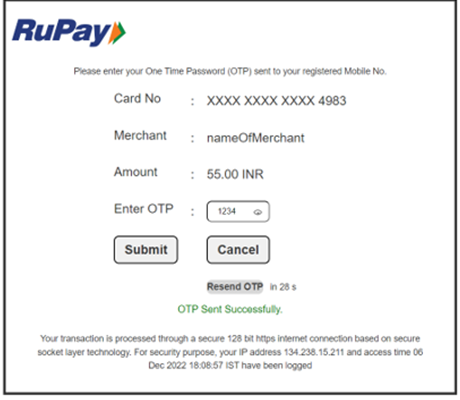
After you collect the OTP from the customer, submit the OTP provided by the customer using the URL present in action tag in authenticate.redirectHTML in response to authenticate payer operation.
On opening the HTML present in authentication.redirect.html, you get a Accertify Payment Gateway checkout OTP page similar to the following:
Available RuPay authentication methods using the Authentication API
Option 1: When issuer supports redirection payer authentication
- A payer browses your shop site, selects one or more products, proceeds to the payment page, and selects to pay with a RuPay card that supports RuPay BEPG.
- Initiate Authentication: You ask the gateway to check with RuPay Network if the card is eligible for RuPay payer authentication.
- If RuPay authentication of the payer is available, the gateway returns the authentication details in the response.
- Authenticate Payer: You ask the gateway to perform the initiated authentication. Invoke this when the payer selects the Pay Now button on the checkout page.
- The gateway returns the redirect URL and the RuPay authentication Transaction ID from RuPay in the Authenticate Payer response.
- You redirect the payer's web browser to the issuer, where the payer validates their OTP. The issuer returns the authentication result to the gateway. The gateway redirects the payer directly to your website.
- To retrieve the authentication results at any stage, use the Retrieve Transaction operation. The gateway does not persist fields used during authentication so does not return them. For example,
authentication.redirect.html. - Use the RuPay Authentication Transaction ID in a payment operation and submit the payment for processing.
- Display the order confirmation page to the payer.
Table: Authenticate Payer request fields
|
Web Service API |
Request field |
Comments |
|
Authenticate Payer |
apiOperation |
AUTHENTICATE_PAYER |
|
order.id |
The same order.id asthe Initiate Authentication operation that preceded it | |
|
transaction.id: |
The same transaction.id as the Initiate Authentication operation that preceded it. | |
|
order.amount |
The total amount of the order | |
|
order.currency |
Currency of the order | |
|
sourceOfFunds.provided.card |
Details of the card or RuPay token being used for the payment. | |
|
sourceOfFunds.provided.card.devicePayment.onlinePaymentCryptogram |
The Payment cryptogram value for the payment provided by NTS. | |
|
authentication.redirectResponseUrl |
The URL to which you want to redirect the payer after completing the payer authentication process. | |
|
device.browserDetails.acceptHeaders |
The content of the Accepted request-header field is sent from the payer's browser. The system uses this to determine which content types are supported by the browser | |
|
|
device.ipAddress |
Only support IPv4 for RuPay authentication. |
Table: Authenticate Payer response fields
|
Web Service API |
Response field |
Comments |
|
Authenticate Payer |
response.gatewayCode |
Summary of the success or otherwise of the operation. |
|
transaction.authenticationStatus |
Provides more details about the authentication status | |
|
authentication.payerInteraction |
Indicates if system used the payer interaction to complete the authentication process. | |
|
result |
A system-generated high-level overall result of the operation FAILURE: The operation was declined or rejected by the gateway, acquirer, or issuer PENDING: The operation is currently in progress or pending processing SUCCESS: The operation was successfully processed | |
|
authentication.redirect.html |
Code to render the Issuer ACS page. Do not change the content in this tag send by Accertify Payment Gateway. To construct a redirection request, the system extracts the following information from the API Response under Redirect.html · Action tag · AccuCardholderId · AccuGuid · AccuReturnURL · Session · AccuRequestId | |
|
response.gatewayRecommendation |
To determine the next step, check the gateway's recommendation provided in response |
The table shows the possible outcomes:
Table: Field description
|
State |
response.gatewayRecommendation |
transaction.authenticationStatus |
Authentication.payerinteraction |
response.gatewaycode |
result |
|
Authentication unsuccessful timeout, invalid pin, and so on |
DO_NOT_PROCEED |
AUTHENTICATION_FAILED |
REQUIRED |
DECLINED |
FAILURE |
|
Authentication is successful. |
PROCEED |
AUTHENTICATION_SUCCESSFUL |
REQUIRED |
APPROVED |
SUCCESS |
|
Example | |
|
Authenticate Payer request |
{ "apiOperation": "AUTHENTICATE_PAYER",
"order": { "amount": "33", "currency": "INR" }, "sourceOfFunds": { "provided": { "card": { "number": "6071489876543212", "devicePayment": { "onlinePaymentCryptogram": "AJgBASOERgAgIwYgEwcpAAAAAAE" }, "expiry": { "month": "08", "year": "26" }, "securityCode": "123" } } }, "device": { "ipAddress": "103.14.160.193", "browser": "MOZILLA/4.0 (COMPATIBLE; MSIE 5.0; WINDOWS 95)", "browserDetails": { "acceptHeaders": "texct/html,application/xhtml+xml,application/xml;q=0.9,*/*;q=0.8" } }, "authentication": { "redirectResponseUrl": " https://www.mastercard.co.in/en-in.html " }
} |
|
Authenticate Payer response |
{ "authentication": { "amount": 33.00, "method": "DYNAMIC", "payerInteraction": "REQUIRED", "redirect": { "html": "<div id='redirectToNpciAcsSimple' xmlns='http://www.w3.org/1999/html'> <form id='redirectToNpciForm' method='POST' action= https://issuerbank.com/redirect_ias/Home/IssuerReg' > <input type='hidden' name='AccuCardholderId' value='jhkuVk8MR7spFS6HCrEdhqj1676886419261'/> <input type='hidden' name='AccuGuid' value='ovURxLXfQuK8WYnzvpQMC6g1676886419261'/> <input type='hidden' name='AccuReturnURL' value='https://in.gateway.mastercard.com/callbackInterface/gateway/0cfd17849a10e3a370883ec522bca9a0b945205b8eba74508ed7812bf978272b'/> <input type='hidden' name='session' value='3810a422a2c22022a762e8975227e453dccd2534c3b720b71403535a0fad6b5c'/> <input type='hidden' name='AccuRequestId' value='ZGU4ZGQ0YTM1NjUxNTQwYmIxNzVhNzIwZDM2NWVjNTdkZjgzZWMzMTQxNzhkMWZkNTljODYwNjg3YTYzMzY4Nw=='/> </form> <script id=\"authenticate-payer-script\"> var e=document.getElementById(\"redirectToNpciForm\"); if (e) { e.submit(); e.remove(); } </script> </div>" }, "status": { "code": "00", "description": "Request was successful" } "time": "2023-02-20T09:46:59.225Z", "version": "RUPAY" }, "billing": { "address": { "city": "Bangalore", "company": "NA", "country": "IND", "stateProvince": "Karnataka", "stateProvinceCode": "KAR", "street": "billing address", "street2": "billing address2" } }, "merchant": "NPCI_BEPG_A", "order": { "amount": 33.00, "authenticationStatus": "AUTHENTICATION_PENDING", "creationTime": "2023-02-20T09:46:59.298Z", "currency": "INR", "id": "881044042", "lastUpdatedTime": "2023-02-20T09:46:59.190Z", "merchantCategoryCode": "1234", "status": "AUTHENTICATION_INITIATED", "totalAuthorizedAmount": 0, "totalCapturedAmount": 0, "totalRefundedAmount": 0, "valueTransfer": { "accountType": "NOT_A_TRANSFER" } }, "response": { "gatewayCode": "PENDING", "gatewayRecommendation": "PROCEED" }, "result": "PENDING", "sourceOfFunds": { "provided": { "card": { "expiry": { "month": "8", "year": "26" }, "number": "607148xxxxxx3212", "scheme": "RUPAY" } }, "type": "SCHEME_TOKEN" }, "timeOfLastUpdate": "2023-02-20T09:46:59.190Z", "timeOfRecord": "2023-02-20T09:46:59.298Z", "transaction": { "acquirer": { "merchantId": "NPCI_BEPG_A" }, "amount": 33.00, "authenticationStatus": "AUTHENTICATION_PENDING", "currency": "INR", "id": "87531105", "type": "AUTHENTICATION" }, ”version”: “100" } |
| Merchant Redirecting payer to Issuer page for authentication through Accertify Payment Gateway |
The merchant must use the redirect.html field content exactly as provided in the Authenticate Payer response. Do not modify any values. This ensures that the cardholder is correctly redirected to the issuer's ACS page for authentication. action= https://issuerbank.com/redirect_ias/Home/IssuerReg' AccuCardholderId =jhkuVk8MR7spFS6HCrEdhqj1676886419261AccuGuid = ovURxLXfQuK8WYnzvpQMC6g1676886419261 AccuReturnURL =https://in.gateway.mastercard.com/callbackInterface/gateway/0cfd17849a10e3a370883ec522bca9a0b945205b8eba74508ed7812bf978272bsession =3810a422a2c22022a762e8975227e453dccd2534c3b720b71403535a0fad6b5cAccuRequestId=ZGU4ZGQ0YTM1NjUxNTQwYmIxNzVhNzIwZDM2NWVjNTdkZjgzZWMzMTQxNzhkMWZkNTljODYwNjg3YTYzMzY4Nw== |
| Retrieve EMV 3-D Secure Authentication result | Request to retrieve the details of a transaction. For example, you can retrieve the details of an authentication that you previously executed.
When the result of the Retrieve Transaction for authenticate payer operation indicates that you can proceed with the payment (response.gatewayRecommendation=PROCEED), merchant initiates an Authorize or Pay operation with the following details from authenticate payer response. Provide the order.id that you supplied in the Initiate Authentication and Authenticate Payer operations.authentication.transactionId: Provide the transaction.id that you supplied in the Initiate Authentication and Authenticate Payer operations. Merchant must not include any of the fields in the authentication parameter group, as the gateway uses the authentication.transactionId to look up the authentication results that it stored when the merchant asked it to perform authentication. The gateway passes the required information to the acquirer. |
If you use the Authentication API, you can see the authentication details on the Merchant Administrator portal when the payer authentication is complete. If the payer authentication is not yet complete, you may experience a delay in the authentication transaction that displays when searching for an order or transaction on the Merchant Administrator portal. For example, going through a challenge flow.In the meantime, you can retrieve the current state of the authentication using the Retrieve Order or Retrieve Transaction operation.
Option 2: Seamless authentication with the merchant hosting the password collection page
- A payer browses your shop site, selects one or more products, proceeds to the payment page, and selects to pay with a RuPay card that supports RuPay BEPG.
- Initiate Authentication: Ask the gateway to check with RuPay BEPG whether the card is eligible for RuPay payer authentication.
- If RuPay authentication of the payer is available, the gateway returns the authentication details in the response.
- Authenticate Payer: You ask the gateway to perform the initiated authentication. Invoke this when the payer selects the Pay Now button on the checkout page.
- Submit the one-time password (OTP) that the payer enters.
- If you wish to retrieve the authentication results at any stage, use the Retrieve Transaction. The gateway does not persist fields that are only used during the authentication and hence does not return them. For example, authentication.redirect.html
- Submit the payment using the RuPay Authentication Transaction ID in the Payment Operation.
- You display the order confirmation page to the payer.
Table: Field description
|
Operation |
State |
response.gatewayRecommendation |
transaction.authenticationStatus |
response.gatewayCode |
Result |
|
Authenticate Payer |
Authentication Successful |
PROCEED |
AUTHENTICATION_PENDING |
PENDING |
PENDING |
|
Re-send OTP |
DO_NOT_PROCEED |
AUTHENTICATION_INITIATED |
PENDING |
PENDING | |
|
Re-send OTP limit exhausted |
DO_NOT_PROCEED |
AUTHENTICATION_REJECTED |
DECLINED |
FAILURE | |
|
Verify OTP |
DO_NOT_PROCEED |
AUTHENTICATION_INITIATED |
PENDING |
PENDING | |
|
OTP verification limit exhaust |
DO_NOT_PROCEED |
AUTHENTICATION_REJECTED |
DECLINED |
FAILURE |
{

    "authentication": {

        "amount": 33.00,

        "method": "DYNAMIC",

        "payerInteraction": "REQUIRED",

        "redirect": {

            "html":

        <div id='redirectToNpciAcsSimple' xmlns='http://www.w3.org/1999/html'> <form id='redirectToNpciForm' onsubmit='clickedSubmit(event)' name='redirectToNpciForm' method='POST' target='my_iframe' action= https://in.gateway.mastercard.com/callbackInterface/gateway/aa3a537114cc8981b1c4886b5ad4d5086bed2c48c1c2c8876796d158d61ecb39'>”

        },

        "time": "2023-09-29T07:42:33.088Z",

        "version": "RUPAY"

    },

    "merchant": "NPCI_MERCHANT_A",

    "order": {

        "amount": 33.00,

        "authenticationStatus": "AUTHENTICATION_PENDING",

        "creationTime": "2023-09-29T07:42:33.782Z",

        "currency": "INR",

        "id": "OID_123_456",

        "lastUpdatedTime": "2023-09-29T07:42:30.962Z",

        "merchantCategoryCode": "4829",

        "status": "AUTHENTICATION_INITIATED",

        "totalAuthorizedAmount": 0,

        "totalCapturedAmount": 0,

        "totalRefundedAmount": 0,

        "valueTransfer": {

            "accountType": "NOT_A_TRANSFER"

        }

    },

    "response": {

        "gatewayCode": "PENDING",

        "gatewayRecommendation": "PROCEED"

    },

    "result": "PENDING",

    "sourceOfFunds": {

        "provided": {

            "card": {

                "expiry": {

                    "month": "8",

                    "year": "26"

                },

                "number": "607148xxxxxx3212",

                "scheme": "RUPAY"

            }

        },

        "type": "SCHEME_TOKEN"

    },

    "timeOfLastUpdate": "2023-09-29T07:42:30.962Z",

    "timeOfRecord": "2023-09-29T07:42:33.782Z",

    "transaction": {

        "acquirer": {

            "merchantId": "NPCI_MERCHANT_A"

        },

        "amount": 33.00,

        "authenticationStatus": "AUTHENTICATION_PENDING",

        "currency": "INR",

        "id": "TID_123_567",

        "type": "AUTHENTICATION"

    },

    “version”: “100"

}
Option 3: Merchant checkout OTP collection page
- When you are designing your OTP collection page, use the following<input> element and the given attribute:
<input id='otp' name='otp' type='password' minlength='4' maxlength='10' required='required' title=''> - After you have collected the OTP from the customer, the system submits the OTP to Accertify Payment Gateway using the URL present in the action tag in authenticate.redirectHTML in response to authenticate payer operation.
OTP submission scenario
Enter an incorrect OTP and request a new one up to four times. After the fourth failed attempt, the system declines the transaction. The scenarios are outlined as follows:
Figure: OTP submission scenario
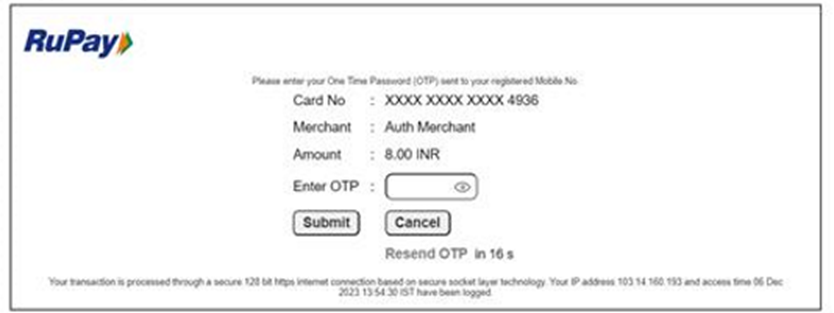
Case 1: Resend OTP
If your payer is unable to approve the payment because they provided the OTP incorrectly or after it expires, they can request another OTP based on the remaining retry attempts by selecting Resend OTP on the HTML page.
To retrieve the authentication results after you submit the OTP, use the Retrieve Transaction operation.
If the Response.gatewayCode is Pending, it indicates that the authentication process is not complete, and the payer must attempt submitting the OTP again.
Retrieve transaction request
Response:


{

    "authentication": {

        "amount": 8.00,

        "method": "DYNAMIC",

        "payerInteraction": "REQUIRED",

        "time": "2023-12-07T07:01:58.486Z",

        "version": "RUPAY"

    },

    "merchant": "TESTNPCI_HDFC_A",

    "order": {

        "amount": 8.00,

        "authenticationStatus": "AUTHENTICATION_REJECTED",

        "chargeback": {

            "amount": 0,

            "currency": "INR"

        },

        "creationTime": "2023-12-07T07:01:56.199Z",

        "currency": "INR",

        "id": "46800547",

        "lastUpdatedTime": "2023-12-07T07:05:56.527Z",

        "merchantAmount": 8.00,

        "merchantCategoryCode": "1234",

        "merchantCurrency": "INR",

        "status": "AUTHENTICATION_UNSUCCESSFUL",

        "totalAuthorizedAmount": 0,

        "totalCapturedAmount": 0,

        "totalDisbursedAmount": 0,

        "totalRefundedAmount": 0

    },

    "response": {

        "gatewayCode": "DECLINED",

        "gatewayRecommendation": "DO_NOT_PROCEED"

    },

    "result": "FAILURE",

    "sourceOfFunds": {

        "provided": {

            "card": {

                "expiry": {

                    "month": "5",

                    "year": "28"

                },

                "number": "607484xxxxxx4936",

                "scheme": "RUPAY"

            }

        },

        "type": "SCHEME_TOKEN"

    },

    "timeOfLastUpdate": "2023-12-07T07:05:56.527Z",

    "timeOfRecord": "2023-12-07T07:05:56.527Z",

    "transaction": {

        "acquirer": {

            "merchantId": "TESTNPCI_HDFC_A"

        },

        "amount": 8.00,

        "authenticationStatus": "AUTHENTICATION_REJECTED",

        "currency": "INR",

        "id": "60002871",

        "stan": "0",

        "type": "AUTHENTICATION"

    },

    "version": "100"

}
Case 2: When the Payer has reached the maximum number of attempts to request the OTP, and the system must abandon this transaction
Response.gatewayCode as Declined indicates that the authentication is unsuccessful and require you to abandon the order for your payer.
Retrieve transaction request
Case 3: With an incorrect first attempt
This was the first user attempt to enter an incorrect OTP. The response returned Response.gatewayCode as Pending and gateway recommendation as Do Not Proceed indicates that the authentication is in progress. Continue to allow the payer to reenter the OTP till they reached maximum attempt.
Figure: Incorrect first attempt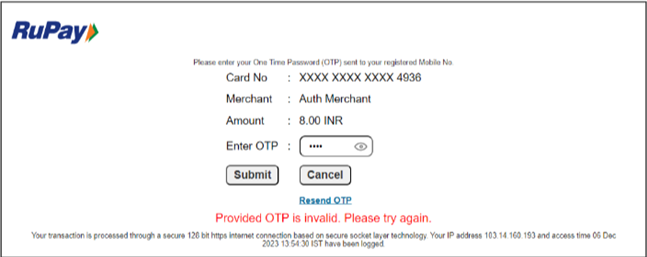
{
"authentication": {
"amount": 8.00,
"method": "DYNAMIC",
"payerInteraction": "REQUIRED",
"time": "2023-12-06T08:24:30.368Z",
"version": "RUPAY"
},
"merchant": "NPCI_MERCHANT_A",
"order": {
"amount": 8.00,
"authenticationStatus": "AUTHENTICATION_PENDING",
"chargeback": {
"amount": 0,
"currency": "INR"
},
"creationTime": "2023-12-06T08:24:27.811Z",
"currency": "INR",
"id": "94395092",
"lastUpdatedTime": "2023-12-06T08:25:13.748Z",
"merchantAmount": 8.00,
"merchantCategoryCode": "1234",
"merchantCurrency": "INR",
"status": "AUTHENTICATION_INITIATED",
"totalAuthorizedAmount": 0,
"totalCapturedAmount": 0,
"totalDisbursedAmount": 0,
"totalRefundedAmount": 0
},
"response": {
"gatewayCode": "PENDING",
"gatewayRecommendation": "DO_NOT_PROCEED"
},
"result": "PENDING",
"sourceOfFunds": {
"provided": {
"card": {
"expiry": {
"month": "5",
"year": "28"
},
"number": "607484xxxxxx4936",
"scheme": "RUPAY"
}
},
"type": "SCHEME_TOKEN"
},
"timeOfLastUpdate": "2023-12-06T08:25:13.748Z",
"timeOfRecord": "2023-12-06T08:25:13.748Z",
"transaction": {
"acquirer": {
"merchantId": "NPCI_MERCHANT_A"
},
"amount": 8.00,
"authenticationStatus": "AUTHENTICATION_PENDING",
"currency": "INR",
"id": "850037532",
"stan": "8",
"type": "AUTHENTICATION"
},
”version”: “100”
}
Case 4: When the Payer has reached the maximum number of attempts to verify the OTP, and this transaction must be abandoned
Response.gatewayCode as Declined and gateway recommendation as Do Not Proceed combining indicates that the authentication is unsuccessful and require you to abandon the order for your payer.
 {

    "authentication": {

        "amount": 8.00,

        "method": "DYNAMIC",

        "payerInteraction": "REQUIRED",

        "time": "2023-12-07T07:01:58.486Z",

        "version": "RUPAY"

    },

    "merchant": "TESTNPCI_HDFC_A",

    "order": {

        "amount": 8.00,

        "authenticationStatus": "AUTHENTICATION_REJECTED",

        "chargeback": {

            "amount": 0,

            "currency": "INR"

        },

        "creationTime": "2023-12-07T07:01:56.199Z",

        "currency": "INR",

        "id": "46800547",

        "lastUpdatedTime": "2023-12-07T07:05:56.527Z",

        "merchantAmount": 8.00,

        "merchantCategoryCode": "1234",

        "merchantCurrency": "INR",

        "status": "AUTHENTICATION_UNSUCCESSFUL",

        "totalAuthorizedAmount": 0,

        "totalCapturedAmount": 0,

        "totalDisbursedAmount": 0,

        "totalRefundedAmount": 0

    },

    "response": {

        "gatewayCode": "DECLINED",

        "gatewayRecommendation": "DO_NOT_PROCEED"

    },

    "result": "FAILURE",

    "sourceOfFunds": {

        "provided": {

            "card": {

                "expiry": {

                    "month": "5",

                    "year": "28"

                },

                "number": "607484xxxxxx4936",

                "scheme": "RUPAY"

            }

        },

        "type": "SCHEME_TOKEN"

    },

    "timeOfLastUpdate": "2023-12-07T07:05:56.527Z",

    "timeOfRecord": "2023-12-07T07:05:56.527Z",

    "transaction": {

        "acquirer": {

            "merchantId": "TESTNPCI_HDFC_A"

        },

        "amount": 8.00,

        "authenticationStatus": "AUTHENTICATION_REJECTED",

        "currency": "INR",

        "id": "60002871",

        "stan": "0",

        "type": "AUTHENTICATION"

    },

    "version": "100"

}
Table: Field description
|
response.gatewayRecommendation |
Next step |
|
DO_NOT_PROCEED |
Ask the payer to enter the correct OTP or generate the OTP until the max attempt is reached. Once the max limit is reached, abandoned this order. |
|
PROCEED |
You can proceed with the payment as authentication is granted. |
Payer authentication through Hosted Checkout using a clear card
You can implement Hosted Checkout in two ways:
- An embedded page - An embedded component within your existing merchant website.
- A hosted payment page - A web page hosted and displayed by the Accertify Payment Gateway.
Prerequisites
- Ensure that your merchant profile is enabled for the Hosted Checkout service. If not enabled, please contact your service provider. To enable Hosted Checkout for the merchant profile, see the Merchant Manager portal and the Merchant Manager User guide.
- It is recommended that you opt for the Notifications service to receive notifications through email or Webhook if the payment is successful. The gateway can also send email notifications to the payer on your behalf.
Follow these steps to integrate the hosted payment page on your website:
Step 1: Request a checkout session using the Initiate_Checkout operation. The request should include payment and interaction data, as well as completion instructions.
A successful response to this operation contains session.id and successIndicator parameters. You can save the value returned in the successIndicator parameter on your shop system to verify the success or failure of the payment.
Step 2: Reference the checkout.min.js file from the gateway servers. This places a Checkout object into global scope.
|
<script src="https://in.gateway.mastercard.com/static/checkout/checkout.min.js" data-error="errorCallback" data-cancel="cancelCallback"></script> |
Step 3: Call Checkout.configure(), passing in a JSON object that includes the returned session.id and another request parameter.
Checkout.configure({

              session: {

                      id: '<your_initiate_checkout_ID>'

                                     },

              interaction: {

                    merchant: {

                        name: 'Your merchant name',

                        address: {

                            line1: '200 Sample St',

                            line2: '1234 Example Town'

                        }

                    }

               }

            });
Step 4: Start the payment process by calling one of the following:
To display the checkout interaction in an embedded page:
Checkout.showEmbeddedPage('#embed-target')
To display the checkout interaction on a Hosted Payment page:
Checkout.showPaymentPage()
Direct payment integration
To retain full control over the transaction flow, including managing your own payment pages, and collecting payment details, use the Direct Payment model. In this setup, payment data is transmitted directly to the Accertify Payment Gateway for processing. This merchant-managed model requires you to manage the security associated with collecting the payer's payment details in your application, thereby increasing PCI compliance costs.
When you integrate directly or through the token requestor with the network token service provider, you must obtain the token details from the token provider and provide these details to the gateway on an Authorization or Pay request to process token-based payments.
Transaction request
When the result of the Authenticate Payer operation indicates that you can proceed with the payment (response.gatewayRecommendation=PROCEED), initiate an Authorize or Pay operation. In addition to the standard fields, you must provide the following fields:
- id: Provide the order.id that you supplied in the Initiate Authentication and Authenticate Payer operations.
- transactionId: Provide the transaction.id that you supplied in the Initiate Authentication and Authenticate Payer operations. You do not need to include any of the fields in the authentication parameter group, as the gateway uses the
authentication.transactionIdto look up the authentication results that it stored when you asked it to perform authentication. The gateway passes the required information to the acquirer.
In addition to the standard fields, provide the following fields in an Authorization/Pay request to process payments using network tokens issued by the network tokenization service providers.
- type=SCHEME_TOKEN: Enables the gateway to identify the source of fund provided in the request as a network token.
- provided.card.number: RuPay token.
- provided.card.expiry: The network token expiry.
- provided.card.devicePayment.onlinePaymentCryptogram: Token Authentication Verification Value (TAVV) from NTS.
- source: Set this to "INTERNET"
Transaction response
When the Authorization or Pay request includes a network token, the Retrieve Transaction response returns the following details:
- type=SCHEME_TOKEN if a network token is used in the Authorization/Pay transaction.
- provided.card.number: The fully masked value.
- provided.card.deviceSpecificNumber: The network token from NTS (“Token”)
- provided.card.deviceSpecificExpiry: The network token expiry.
{

    "authentication": {

        "transactionId": "TID_123_567"

    },

    "authorizationResponse": {

        "transactionIdentifier": "100122023092900000000000247707"

    },

    "device": {

        "browser": "MOZILLA/4.0 (COMPATIBLE; MSIE 5.0; WINDOWS 95)",

        "ipAddress": "103.14.160.193"

    },

    "gatewayEntryPoint": "WEB_SERVICES_API",

    "merchant": "NPCI_MERCHANT_A",

    "order": {

        "amount": 121.00,

        "chargeback": {

            "amount": 0,

            "currency": "INR"

        },

        "creationTime": "2023-09-29T07:42:18.401Z",

        "currency": "INR",

        "id": "OID_123_456",

        "lastUpdatedTime": "2023-09-29T07:46:50.247Z",

        "merchantAmount": 33.00,

        "merchantCategoryCode": "4829",

        "merchantCurrency": "INR",

        "status": "AUTHORIZED",

        "totalAuthorizedAmount": 33.00,

        "totalCapturedAmount": 0.00,

        "totalDisbursedAmount": 0.00,

        "totalRefundedAmount": 0.00

    },

    "response": {

        "acquirerCode": "00",

        "acquirerMessage": "Success",

        "gatewayCode": "APPROVED",

        "gatewayRecommendation": "PROCEED"

    },

    "result": "SUCCESS",

    "sourceOfFunds": {

        "provided": {

            "card": {

                "brand": "RUPAY",

                "deviceSpecificExpiry": {

                    "month": "8",

                    "year": "26"

                },

                "deviceSpecificNumber": "607148xxxxxx3212",

                "expiry": {

                    "month": "8",

                    "year": "26"

                },

                "fundingMethod": "UNKNOWN",

                "number": "xxxxxxxxxxxxxxxx",

                "scheme": "RUPAY",

                "storedOnFile": "NOT_STORED",

                "tags": "{\"RUPAY_BIN_STATUS_FLAG\":\"ACTIVE\",\"RUPAY_BIN_MESSAGE_TYPE\":\"DMS\"}"

            }

        },

        "type": "SCHEME_TOKEN"

    },

    "timeOfLastUpdate": "2023-09-29T07:46:50.247Z",

    "timeOfRecord": "2023-09-29T07:46:44.557Z",

    "transaction": {

        "acquirer": {

            "id": "NPCI_ACQBANK_S2S",

            "merchantId": "123456789012345"

        },

        "amount": 33.00,

        "authorizationCode": "131648",

        "currency": "INR",

        "id": "TID_123_56781",

        "receipt": "327213000026",

        "source": "INTERNET",

        "stan": "26",

        "terminal": "91827364",

        "type": "AUTHORIZATION"

    },

    ”version”: “100"

}
{

    "authorizationResponse": {

        "transactionIdentifier": " TID_123_56781"

    },

    "device": {

        "browser": "MOZILLA/4.0 (COMPATIBLE; MSIE 5.0; WINDOWS 95)",

        "ipAddress": "103.14.160.193"

    },

    "gatewayEntryPoint": "WEB_SERVICES_API",

    "merchant": "NPCI_MERCHANT_A",

    "order": {

        "amount": 33.00,

        "chargeback": {

            "amount": 0,

            "currency": "INR"

        },

        "creationTime": "2023-09-29T07:42:18.401Z",

        "currency": "INR",

        "id": "OID_123_456",

        "lastUpdatedTime": "2023-09-29T09:34:37.848Z",

        "merchantAmount": 33.00,

        "merchantCategoryCode": "4829",

        "merchantCurrency": "INR",

        "status": "PARTIALLY_CAPTURED",

        "totalAuthorizedAmount": 33.00,

        "totalCapturedAmount": 30.00,

        "totalDisbursedAmount": 0.00,

        "totalRefundedAmount": 0.00

    },

    "response": {

        "gatewayCode": "APPROVED_PENDING_SETTLEMENT"

    },

    "result": "SUCCESS",

    "sourceOfFunds": {

        "provided": {

            "card": {

                "brand": "RUPAY",

                "deviceSpecificExpiry": {

                    "month": "8",

                    "year": "26"

                },

                "deviceSpecificNumber": "607148xxxxxx3212",

                "expiry": {

                    "month": "8",

                    "year": "26"

                },

                "fundingMethod": "UNKNOWN",

                "number": "xxxxxxxxxxxxxxxx",

                "scheme": "RUPAY",

                "storedOnFile": "NOT_STORED",

                "tags": "{\"RUPAY_BIN_STATUS_FLAG\":\"ACTIVE\",\"RUPAY_BIN_MESSAGE_TYPE\":\"DMS\"}"

            }

        },

        "type": "SCHEME_TOKEN"

    },

    "timeOfLastUpdate": "2023-09-29T09:34:37.848Z",

    "timeOfRecord": "2023-09-29T09:34:37.549Z",

    "transaction": {

        "acquirer": {

            "batch": 1,

            "id": "NPCI_ACQBANK_S2S",

            "merchantId": "123456789012345",

            "settlementDate": "2023-09-29",

            "timeZone": "+0530"

        },

        "amount": 30.00,

        "authorizationCode": "131648",

        "currency": "INR",

        "id": "TID_123_5678111",

        "receipt": "327215000030",

        "source": "INTERNET",

        "stan": "30",

        "terminal": "91827364",

        "type": "CAPTURE"

    },

    ”version”: “100"

}
Hosted Checkout
Hosted checkout usage
You can use the Hosted Checkout page for the following.
- While you are still working on your website or app.
- As an alternative to hosting your own payment form.
- If you are not PCI-complaint.
Hosted Payments page is a Accertify Payment Gateway-hosted interface where you send your customers to finalize their payment details. Because we host the webpage, you never touch these secure details, so the responsibility for PCI compliance remains with us. With this model of integration, you never see or handle payment details directly because these are collected by the hosted payment interface and submitted directly from the payer's browser to the Accertify Payment Gateway.
The system displays the payment page form to the payer after routing them from the merchant’s website. Depending on the merchant’s setup, other payment methods may be available. In this case, the merchant accepts RuPay credit or debit cards.
Merchants must initiate the Hosted Checkout interaction by submitting an API INITIATE_CHECKOUT request. Refer
the Accertify Payment Gateway API documentation to integrate Initiate Checkout in the Hosted Checkout Integration.
When the payer fills all the necessary fields, the Pay button is enabled, allowing the payer to continue with the transaction as shown in the Hosted checkout payment page image.
Hosted checkout payment page
If a payment fails, the payer will see payment unsuccessful text.
Figure: Hosted checkout payment page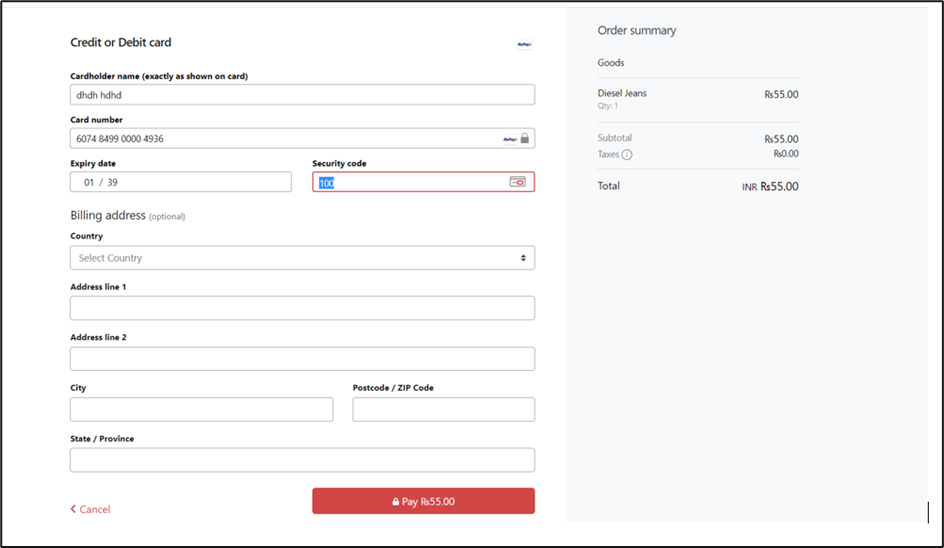
Online payment reversal
Gateway provides a WS-API VOID request to generate a reversal for an approved transaction.
If a response to the Authorization request is not received by the gateway within 30 seconds and the authorize transaction is timed out at the acquirer's end, the reversal of the timed-out transaction is automatically initiated by the gateway.
Figure: Error page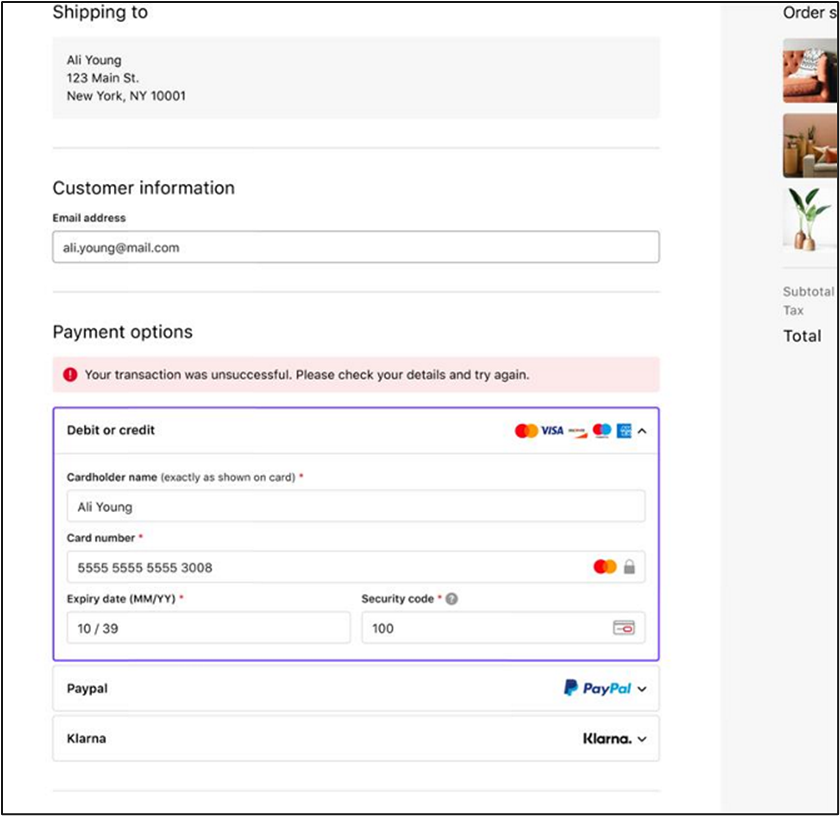
You can determine the time-out using the value returned in the response.gatewayRecommendation and response.gatewayCode field.
|
Field Name |
Response |
|
response.gatewayRecommendation |
RESUBMIT_WITH_ALTERNATIVE_PAYMENT_DETAILS |
|
response.gatewayCode |
TIMED_OUT |
|
Result |
Failure |
{

    "apiOperation": "VOID",

    "transaction": {

        "targetTransactionId": "603648829"

    }

}
{

    "authorizationResponse": {

        "transactionIdentifier": "100122023080200000000000235134"

    },

    "device": {

        "browser": "MOZILLA/4.0 (COMPATIBLE; MSIE 5.0; WINDOWS 95)",

        "ipAddress": "103.14.160.193"

    },

    "gatewayEntryPoint": "WEB_SERVICES_API",

    "merchant": "NPCI_HDFC_A",

    "order": {

        "amount": 8.00,

        "chargeback": {

            "amount": 0,

            "currency": "INR"

        },

        "creationTime": "2023-08-02T10:36:00.672Z",

        "currency": "INR",

        "id": "88585032",

        "lastUpdatedTime": "2023-08-02T10:39:24.050Z",

        "merchantAmount": 8.00,

        "merchantCategoryCode": "4829",

        "merchantCurrency": "INR",

        "status": "CANCELLED",

        "totalAuthorizedAmount": 0.00,

        "totalCapturedAmount": 0.00,

        "totalDisbursedAmount": 0.00,

        "totalRefundedAmount": 0.00

    },

    "response": {

        "acquirerCode": "00",

        "acquirerMessage": "Reversal transaction successfull",

        "gatewayCode": "APPROVED"

    },

    "result": "SUCCESS",

    "sourceOfFunds": {

        "provided": {

            "card": {

                "brand": "RUPAY",

                "expiry": {

                    "month": "8",

                    "year": "26"

                },

                "fundingMethod": "DEBIT",

                "number": "607148xxxxxx3212",

                "scheme": "RUPAY",

                "storedOnFile": "NOT_STORED",

                "tags": "{\"RUPAY_BIN_STATUS_FLAG\":\"ACTIVE\",\"RUPAY_BIN_MESSAGE_TYPE\":\"DMS\"}"

            }

        },

        "type": "CARD"

    },

    "timeOfLastUpdate": "2023-08-02T10:39:24.050Z",

    "timeOfRecord": "2023-08-02T10:39:17.697Z",

    "transaction": {

        "acquirer": {

            "batch": 1,

            "id": "NPCI_ACQBANK_S2S",

            "merchantId": "123456789012345"

        },

        "amount": 8.00,

        "currency": "INR",

        "id": "980138844",

        "receipt": "321416000082",

        "source": "INTERNET",

        "stan": "82",

        "targetTransactionId": "603648829",

        "terminal": "91827364",

        "type": "VOID_AUTHORIZATION"

    },

    "version": "100"

}
{

    "apiOperation": "AUTHORIZE",

    "order": {

        "amount": "8.88",

        "currency": "INR"

    },

    "sourceOfFunds": {

        "provided": {

            "card": {

                "number": "607484xxxxxx4936",

                "devicePayment": {

                    "onlinePaymentCryptogram": "APJUR+bB46ysAAKYEAOYGgADFA=="

                },

                "expiry": {

                    "month": "05",

                    "year": "39"

                },

                "securityCode": "111"

            }

        },

        "type": "SCHEME_TOKEN"

    },

    "authentication": {

        "transactionId": "{Authentication_Transaction_ID}"

    },


    "device": {

        "ipAddress": "103.14.160.193",

        "browser": "MOZILLA/4.0 (COMPATIBLE; MSIE 5.0; WINDOWS 95)"

    },


}
{

    "authentication": {

        "transactionId": "87539743"

    },

    "billing": {

        "address": {

            "city": "Bangalore",

            "company": "NA",

            "country": "IND",

            "stateProvince": "Karnataka",

            "stateProvinceCode": "KAR",

            "street": "billing address, billing address2"

        }

    },

    "device": {

        "browser": "MOZILLA/4.0 (COMPATIBLE; MSIE 5.0; WINDOWS 95)",

        "ipAddress": "103.14.160.193"

    },

    "gatewayEntryPoint": "WEB_SERVICES_API",

    "merchant": "NPCI_HDFC_A",

    "order": {

        "amount": 8.88,

        "chargeback": {

            "amount": 0,

            "currency": "INR"

        },

        "creationTime": "2023-12-28T04:00:21.438Z",

        "currency": "INR",

        "id": "189369944",

        "lastUpdatedTime": "2023-12-28T04:01:25.829Z",

        "merchantAmount": 8.88,

        "merchantCategoryCode": "1234",

        "merchantCurrency": "INR",

        "status": "FAILED",

        "totalAuthorizedAmount": 0.00,

        "totalCapturedAmount": 0.00,

        "totalDisbursedAmount": 0.00,

        "totalRefundedAmount": 0.00

    },

    "response": {

        "gatewayCode": "TIMED_OUT",

        "gatewayRecommendation": "RESUBMIT_WITH_ALTERNATIVE_PAYMENT_DETAILS"

    },

    "result": "FAILURE",

    "shipping": {

        "address": {

            "city": "Hyderabad",

            "company": "NA",

            "country": "IND",

            "postcodeZip": "506224",

            "sameAsBilling": "DIFFERENT",

            "source": "NEW_ADDRESS",

            "stateProvince": "TELANGANA",

            "stateProvinceCode": "TSS",

            "street": "shipping street, shipping street2"

        },

        "contact": {

            "email": "yacharenikrishnakanth@domain.com",

            "firstName": "Krishnakanth",

            "lastName": "Yachareni",

            "mobilePhone": "9603592104",

            "phone": "08710316219"

        },

        "method": "GROUND"

    },

    "sourceOfFunds": {

        "provided": {

            "card": {

                "brand": "RUPAY",

                "deviceSpecificExpiry": {

                    "month": "5",

                    "year": "39"

                },

                "deviceSpecificNumber": "607484xxxxxx4936",

                "expiry": {

                    "month": "5",

                    "year": "39"

                },

                "fundingMethod": "UNKNOWN",

                "number": "xxxxxxxxxxxxxxxx",

                "scheme": "RUPAY",

                "storedOnFile": "NOT_STORED",

                "tags": "{\"RUPAY_BIN_STATUS_FLAG\":\"ACTIVE\",\"RUPAY_BIN_MESSAGE_TYPE\":\"DMS\"}"

            }

        },

        "type": "SCHEME_TOKEN"

    },

    "timeOfLastUpdate": "2023-12-28T04:01:25.829Z",

    "timeOfRecord": "2023-12-28T04:00:53.999Z",

    "transaction": {

        "acquirer": {

            "id": "NPCI_ACQBANK_S2S",

            "merchantId": "423555234334123"

        },

        "amount": 8.88,

        "currency": "INR",

        "id": "327158340",

        "receipt": "336209000045",

        "source": "INTERNET",

        "stan": "45",

        "terminal": "12334448",

        "type": "AUTHORIZATION"

    },

    "version": "100"

}
WS-API operations
Refer this guide for Payer Authentication and payment transaction.
The supported operations are:
Authorization
If the authentication result tells the merchant to proceed, make a request to obtain an authorization for a proposed funds transfer. An authorization is a response from a financial institution indicating that payment information is valid, and funds are available in the payer's account.
Capture
The system debits funds from the cardholder’s account against an authorization. The merchant can submit only a single capture for each authorization. The capture amount must be equal to or lower than the original transaction amount, but no higher than 115% of the original transaction amount.
Purchase or Pay
The system immediately reflects the approved amount in the cardholder’s account balance. This process performs authorization and capture in a single step.
Refunds
The system supports only full refunds. The accumulated refund amount must not exceed the amount of the original transaction. Standalone refunds are not supported. White label merchants with the respective privilege can create orders and perform refunds and other subsequent transactions using the Merchant Administration.
Voids
The system supports only full voids. Perform the void before the funds are settled.
Test your integration
To access the Accertify Payment Gateway test simulator, type "TEST" as a prefix to the Merchant ID supplied by your payment service provider. If the Merchant ID supplied already has "TEST" as the first four letters, you are already using the test simulator, your payment service provider sends you another Merchant ID when you are ready to process live transactions.
The test simulator is configured to generate predictable results based on the AUTHORIZE or PAY request and card details you supply.
|
RuPay Token |
Token Cryptogram |
Amount (ending with) |
Token Month /year/CVV |
Transaction Response Gateway Code |
|
60748499AAAA4936
Replace A with Zero.
|
APJUR+bB46ysAAKYEAOYGgADFA== |
.00 |
01/39, 111 |
APPROVED |
|
8.21 |
01/39 , 111 |
ACQUIRER_SYSTEM_ERROR | ||
|
8.88 |
01/39 , 111 |
TIMED_OUT | ||
|
9.21 |
01/39 , 111 |
DECLINED | ||
|
6.66 |
01/39 , 111 |
EXPIRED_CARD with RC 54 | ||
|
8.05 |
01/39 , 111 |
DECLINED_CSC with RC 05 | ||
|
8.93 |
01/39 , 111 |
DECLINED with RC 93 | ||
|
|
|
.00 |
01/39, 111 |
DECLINED with RC 410 (Invalid Bin) |
Table: Error simulation for AUTHENTICATE_PAYER during OTP generation
|
Error Simulation |
Response.gatewayCode and Response.gatewayRecomendation |
Order.Amount (Ending With) |
|
Amount Error |
Declined & DO_NOT_PROCEED |
.71 |
|
Limit reached for resend OTP request for this transaction. The user must initiate a new transaction. |
Declined & DO_NOT_PROCEED |
.45 |
|
NO ROUTING AVAILABLE |
Declined & DO_NOT_PROCEED |
.92 |
Table: Error simulation for Authenticate payer for OTP Verification
Enter these OTP values on the OTP collection page to see the response in Retrieve transaction API call.
|
Error Simulation |
Response.gatewayCode and Response.gatewayRecomendation |
One-Time Password |
|
Expired OTP |
Declined & DO_NOT_PROCEED |
1236 |
|
Limit reached for Verifying OTP request for this transaction. The user must initiate a new transaction. |
Declined & DO_NOT_PROCEED |
1235 |
|
Request successful |
APPROVED & PROCEED |
1234 |
Commence live payments
After you have tested your integration and received your production merchant ID, you can process live transactions. To move your integration from the test profile to the production profile, you need to update the following with the new values for your production profile:
- Merchant ID
- API Password
You should perform several live test transactions, using a real credit card, through your production profile, and validate that transactions settle correctly into the expected bank account.
Contact your payment service provider if you need more information on commencing live payments.
Definitions
The RuPay integration guide references the following key terms.
Table: Definitions
|
Term |
Definition |
|
Acquiring Bank/ Acquirer |
Financial institution that processes credit, debit, or prepaid card payments for a merchant. |
|
Direct API |
The Direct Application Programming Interface, or Direct API, enables acquirers and merchants to integrate directly with the Accertify Payment Gateway. The system sends the payments directly to the gateway for processing. |
|
Hosted Checkout |
Merchants collect payment details from the cardholder through an interaction that the Accertify Payment Gateway hosts and displays. With this integration model, the hosted payment interface collects the payment details and submits them directly from the cardholder’s browser to the Accertify Payment Gateway without the merchant’s interference. |
|
Accertify Payment Gateway |
Accertify Payment Gateway offers Rupay as a payment method to acquirers and their merchants. |
|
MTF |
MTF stands for Member Testing Facility within the Accertify Payment Gateway platform. |
|
RuPay |
India's domestic debit, credit, and prepaid card scheme. |
|
NPCI |
National Payment Corporation of India (NPCI) is the umbrella organization that powers retail payments in India. |
|
BEPG |
Bharat eCommerce Payment Gateway (BEPG) is the e-commerce system which is being introduced to enhance the current e-commerce experience for the RuPay Cardholders. |
|
ACS |
Access Control Server (ACS) is a component that operates in the issuer domain. It verifies whether authentication is available for a card number and device type and authenticates specific transactions. |
|
UAT |
User Acceptance Testing (UAT) is part of the NPCI certification process and is completed in the Accertify Payment Gateway's MTF environment |
|
White Label Acquirer |
A white label acquirer is a reseller of the RuPay payment method through the Mastercad Gateway |
|
Merchant |
Merchant is a customer of the white label acquirer. White label acquirer offers RuPay to their merchants through Accertify Payment Gateway |
|
Card Holder or Payer |
A person who has a RuPay credit card or debit card. |
|
OTP |
One-time Password (OTP) IS provided by the issuing bank in SMS or email and used to authenticate the payer. |
|
Card Provision |
The merchant website adds the card with cardholder authentication, and the NPCI Token Service generates token credentials in the backend. |
|
Authentication Purpose |
If you are establishing a payment agreement and processing a payment along with it, provide ‘PAYMENT TRANSACTION’ as the Authentication purpose. Provide the agreement details. If you are establishing a payment agreement and not processing a payment along with it, provide ‘ADD_CARD’ as the Authentication purpose. Provide the agreement details. |